My Tasks
One of the easiest ways to get started with Fellowship One WebLinkAn extention of Fellowship One functionality for the church website. Includes Online Giving, Event Registration, Small Group Finder and Manager, Relationship Manager, and Volunteer Application. is to implement the Contact Form module. This tool connects directly to the Contact Management workflow in Fellowship One that may already be in use at your church.
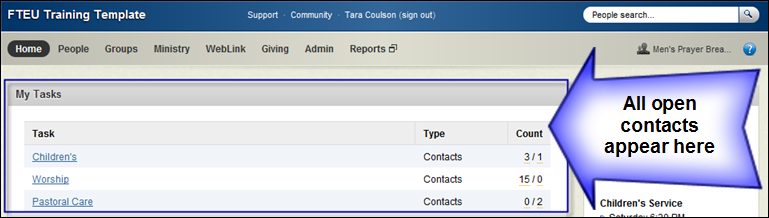
If you are currently tracking your paper communication cards/guest registry cards within Fellowship One, you know that each contact item on your communication card can be directed to a particular ministry and a specific user that has access to the ministry. For example, user Bill Wheaton may be responsible for communicating with all prayer requests. When Bill logs into Fellowship One, he will see any open contact items on the Home page in the My Tasks panel.
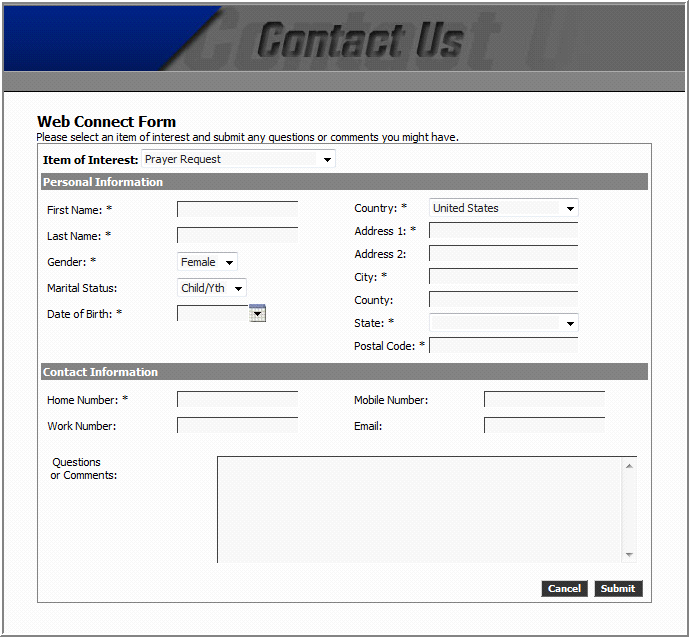
When placing Contact Form on your website, you allow website visitors to access ministry contacts that are directly recorded in Fellowship One and are easy to track. The Contact Form module displays a drop‐down list that contains all items on the form. Users can choose one item from this drop‐down list at a time.
Note: We recommend that you limit this list to a handful of high‐level contact items. If you provide users with too many choices, they may become confused and not understand which selection to choose.
This recommendation may require you to train a ministry staff member to transfer contacts appropriately as they come in from the website. For example, if you have a contact item called “General Interest”, any number of questions could be asked by website users. The person responsible for this contact item may be required to transfer any of these items to different ministries as appropriate.
The user simply completes required form fields and then can optionally type something like a question or a prayer request into the Questions or Comments field. After clicking the Submit button, the contact is recorded in Fellowship One immediately.
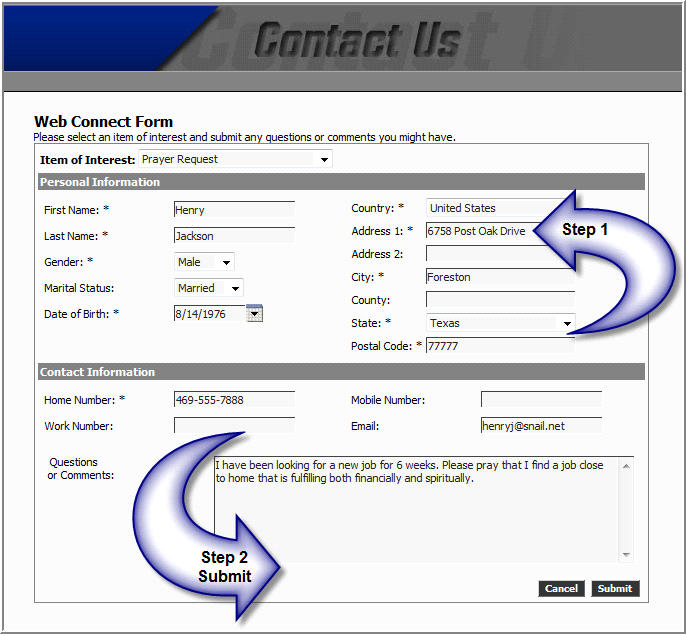
In the following example, Henry Jackson has selected the Prayer Request contact item and completed all required fields in step 1. He has also typed in his prayer request in the Questions or Comments field. Step 2 happens when Henry clicks Submit.
This immediately appears in Fellowship One. The person responsible for the Prayer Request item will see a hyperlink to the contact in the My Tasks panel under the appropriate ministry.
Next, see Creating a Web Contact Form.